Showing posts with label ubuntu. Show all posts

Monday, July 18, 2016

Install Git on Ubintu

2 ways are installing git on ubuntu

A. Installation
1. Using apt-get - it's simple, but not latest version.
$ sudo apt-get install git

2. Download and install manually - it can use latest version.
- install libraries
$ sudo apt-get install libcurl4-gnutls-dev libexpat1-dev gettext \
    libz-dev libssl-dev
- if you want various documents format, need to these libraries
$ sudo apt-get install asciidoc xmlto docbook2x
- download latest release version from follows
Kernel.org( https://www.kernel.org/pub/software/scm/git/ )
GitHub mirror( https://github.com/git/git/releases )
- compile and install
$ tar -zxf git-1.9.1.tar.gz
$ cd git-1.9.1
$ make configure
$ ./configure --prefix=/usr
$ make all doc info
$ sudo make install install-doc install-html install-info


B. Configuration setting
- user
$ git config --global user.name "user name"
$ git config --global user.email emailaddress@email.com
- editor
$ git config --global core.editor editorname
- checking config settings
$ git config --list
- usage help
$ git help 
$ git  --help
$ man git-
ex) $ git help config


C. Generate project
- generate folder
$ mkdir testGitProject
- generate git repository in above folder
$ git init
- add and commit
$ git add *.c
$ git add LICENSE
$ git commit -m 'message about this project version'


D. Clone remote repository
- follow command makes directory named "libgit2" and generate .git in "libgit2". And clone repository
$ git clone https://github.com/libgit2/libgit2
- only differ name of directory "mylibgit", others are same
$ git clone https://github.com/libgit2/libgit2 mylibgit


E. other commands
- check state of repository
$ git status
- commit
$ git commit
- view log
$ git log
- fetch or pull remote repository (pull = fetch + merge)
$ git fetch [remote-name]
$ git pull [remote-name]
- push
$ git push origin master


ref : https://git-scm.com/book/en/v2/Getting-Started-Installing-Git
ref : http://yokang90.tistory.com/47

Thursday, July 14, 2016

Ubuntu Commands and Tips #2

Memo - commands and tips in ubuntu


1. Network setting on ubuntu : when you can't connect lan(wired) network
- open follows
$ sudo gedit /etc/network/interfaces
- text in file
# This file describes the network interfaces available on your system
# and how to activate them. For more information, see interfaces(5).
# The loopback network interface

auto lo
iface lo inet loopback
- case1_auto : add as follows under text in file
auto eth0
iface eth0 inet dhcp
- case2_manual : add as follows
auto eth0
iface eth0 inet static
        address 192.168.0.2
        netmask 255.255.255.0
        gateway 192.168.0.1
        dns-nameservers ~~~~~
- save and network restart
$ sudo ifdown eth0
$ sudo ifup eth0
ref : http://blog.iolate.kr/89
ref : http://promobile.tistory.com/300


2. Error : " ubuntu wired network unmanaged "
- open follows
$ sudo gedit /etc/NetworkManager/NetworkManager.conf
- file contains, set "managed=true"
[main]
plugins=ifupdown,keyfile

[ifupdown]
managed=false
- save and restart network manager
$ /etc/init.d/network-manager restart
ref : https://wishkane.wordpress.com/2013/07/11/ubuntu-network-manager-wired-networks-are-unmanaged/


3. Activate workspaces
- System Settings -> Appearance -> Behavior
- check "Enable workspaces"


4. 우분투 한글 및 한글 키보드 설정
- System Setting -> Language Support -> Language Support install
- System Setting -> Text Entry -> 왼쪽 하단에 '+'를 이용해서 'Korean(Hangul)' 이라고 되어있는 항목을 추가
(되도록이면 영어 - 한국어 순으로 설정)
- System Setting -> Keyboard -> Shortcuts -> Typing -> Compose Key를 'Disabled'에서 'Right Alt'로 변경
- terminal에 아래의 내용을 입력 (한/영 키 사용 위함)
$ sudo apt-get install dconf-editor
- 설치가 완료되면 org -> gnome -> desktop -> wm -> keybindings -> switch-input-source의 값을 'Hangul'이라고 입력


Wednesday, July 13, 2016

Ubuntu Commands and Tips #1

Memo - commands and tips in ubuntu


1. Check protocol / ip / port/ program id
$ sudo netstat -tnlp
*options : -t(connected TCP protocol) -n(numeric address) -l(port, state : 'LISTEN') -p(program id)


2. Process Termination
$ sudo kill PID


ref : http://zetawiki.com/wiki/%EB%A6%AC%EB%88%85%EC%8A%A4_%EA%B2%8C%EC%9D%B4%ED%8A%B8%EC%9B%A8%EC%9D%B4_%ED%99%95%EC%9D%B8
ref : http://kjvvv.kr/14174
ref : http://linuxism.tistory.com/48


3. Change the command-line prompt color
$ sudo gedit ~/.bashrc
and find this line
#force_color_prompt=yes
remove hash -> 'force_color_prompt=yes'

want to further changes.
ref : https://ubuntugenius.wordpress.com/2011/07/11/how-to-change-the-command-line-prompt-colour-in-the-ubuntulinux-terminal/


4. Back-up application : TimeShift
- installation
$ sudo apt-add-repository -y ppa:teejee2008/ppa
$ sudo aptitude update
$ sudo aptitude install timeshift
ref : https://launchpad.net/timeshift


5. Error : " Failed to fetch http://dl.google.com/linux/chrome/deb/dists/stable/Release Unable to find expected entry ‘main/binary-i386/Packages’ in Release file (Wrong sources.list entry or malformed file) "
- sol
$ sudo gedit /etc/apt/sources.list.d/google-chrome.list
and find the line add [amd64] like follows, Do not edit or replace any other text in this file
deb [arch=amd64] http://dl.google.com/linux/chrome/deb/ stable main
$ sudo apt-get update
ref : http://www.omgubuntu.co.uk/2016/03/fix-failed-to-fetch-google-chrome-apt-error-ubuntu


6. Error : " W: There is no public key available for the following key IDs: 1397BC53640DB551 "
- sol
$ sudo apt-key adv --recv-keys --keyserver keyserver.ubuntu.com 1397BC53640DB551
$ sudo apt-get update
ref : http://askubuntu.com/questions/520718/no-public-key-available-while-upgrading-using-update-manager


7. Error : " W: GPG error: http://http.debian.net wheezy-backports InRelease: The following signatures couldn't be verified because the public key is not available: NO_PUBKEY 8B48AD6246925553 NO_PUBKEY 7638D0442B90D010 "
- sol.1
do same as above process
- sol.2
do as follows(reference)
ref : http://askubuntu.com/questions/13065/how-do-i-fix-the-gpg-error-no-pubkey


Thursday, March 24, 2016

Compress and Extract file or directory on Ubuntu

Way to compress and extract file or directory in command line.

1. Compress file or directory
$ tar czvf Comptarget.tar.gz /target
- All contents compress under '/target' will be named as 'Comptarget.tar.gz'


2. Split and Compress file or directory
$ tar czvf - /target | split -b 500mb - Comptarget.tar.gz
- You need to split file or directory if target is too big.
- Can compress target and split it by 500mb.
- Output files will be named as Comptarget.tar.gz*
$ tar czvf Comptarget.tar.gz /target
$ split -b 500mb Comptarget.tar.gz
- Same action above line.


3. Merge compressed Compressed.tar.gz*
$ cat Comptarget.tar.gz* > Comptarget.tar.gz
- Merge split files.


4. Merge and extract Compressed.tar.gz*
$ cat Comptarget.tar.gz* > tar xzvf -
- Can merge and extract in an action.


Ref : http://yoonperl.tistory.com/165

Monday, January 11, 2016

Install Ubuntu 14.04.3 from USB


[Conditions]
1. If you want to change your OS from Windows to Ubuntu.
2. 64bit
3. ver. 14.04.3 LTS Desktop
4. live in Korea but installing Ubuntu ENG ver


follow the steps below

1. Download Ubuntu desktop(choose your flavour)
get here : http://www.ubuntu.com/download/desktop

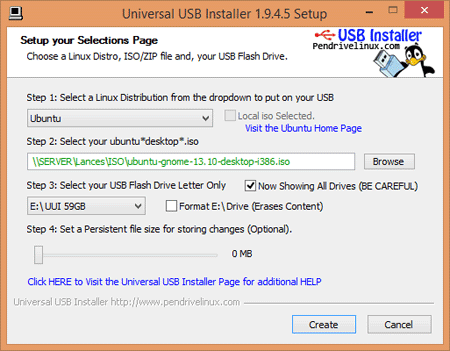
2. Need utility likes UUI(Universal USB Installer) for making bootable USB flash drive.
get here : http://www.pendrivelinux.com/universal-usb-installer-easy-as-1-2-3/

3. Make Bootable USB
- select "Ubuntu" at first dropdown box
- find your ubuntu iso file downloaded
- choose your USB drive
complete screen
ref : http://www.pendrivelinux.com/universal-usb-installer-easy-as-1-2-3/

4. Choose USB drive when your PC boot

5. Follow these steps
- select first option "Install Ububtu"
- recommend do not "V" check any box(faster)
- choose options, you want. and fill in, wait installing

6. If you can see 'log-in' screen, installing is completed


*** I recommend to back up(snapshot using utility likes timeshift) when you complete install before change some conditions.

Wednesday, October 28, 2015

Install Gensim on UBUNTU 14.04

Gensim is python library for topic modeling.


Installation

1. Check dependencies Python(>=2.6) & NumPy(>=1.3) & SciPy(>=0.7)

2. Install SciPy & NumPy
$ sudo apt-get install python-numpy
$ sudo apt-get install python-scipy

3. Download and unzip ~.tar.gz.source file
https://pypi.python.org/pypi/gensim
$ python setup.py install

4. Open ~/.bashrc by text editor and insert PATH
export PATH=$PATH:\
/home/..../Desktop/TopicModeling/Gensim


Testing

1. Go to ~/GENSIMHOME and run
$ python setup.py test
more examples:
https://radimrehurek.com/gensim/tutorial.html


Ref:
https://radimrehurek.com/gensim/install.html

Neo4j installation

Install Neo4j(graph DB) on ubuntu 14.04.03


1. First install java7
$ sudo apt-get update
$ sudo apt-get install python-software-properties
$ sudo add-apt-repository ppa:webupd8team/java
$ sudo apt-get update
$ sudo apt-get install oracle-java7-installer

2. Download Neo4j(select community edition)
http://neo4j.com/download/

3. Extract file, refer to the top-level extracted directory as : NEO4J_HOME

4. Open ~/.bashrc and change
export PATH=$PATH:\
/home/...../neo4j-community-2.3.0

5. Run
$ sudo ./bin/neo4j start or stop or restart

6. Open web browser and type in "localhost:7474"


*****
If you want to use Neo4j in Python project, you need to python module like py2neo

1. Install py2neo
$ sudo pip install py2neo

2. Setting port / user name / password when you make code
from py2neo import neo4j, authenticate, Graph

host_port = "localhost:7474"
user_name = "neo4j"
password = "neo4j"

authenticate(host_port, user_name, password)
graph = Graph("http://localhost:7474/db/data/")


Ref:
http://www.delimited.io/blog/2014/1/15/getting-started-with-neo4j-on-ubuntu-server
http://neo4j.com/docs/stable/server-installation.html
http://py2neo.org/2.0/

Monday, October 26, 2015

CWB (The IMS Open Corpus Workbench) installation

CWB(The IMS Open Corpus Workbench) : managing and querying large text corpora
I will use CWB for preprocessing of topic modeling


(ubuntu 14.04.03)
1. Download CWB, extract
http://cwb.sourceforge.net/download.php

2. Install on target directory
$ sudo ./install-cwb.sh

3. Finish

4. If you want to test your CWB installation, download and unpack one of the pre-indexed demo corpora(novels by Charles Dickens)
http://cwb.sourceforge.net/download.php

5. Move to DemoCorpus/ and typing this on command line
$ cwb-describe-corpus -r registry -s DICKENS
result

it prints some information about the corpus and its attributes

6. Next type in
$ cqp -eC -r registry -D DICKENS
start an interactive CQP session and activate the demo corpus DICKENS for queries.

7. Type in some words like this, and check result.
DICKENS> "the"
result


8. Try applying options
DICKENS> set Context 1 s;
DICKENS> "the";
DICKENS> show +lemma
DICKENS> show +pos;


9. Finished settings and try testing again


****
If you want to use CWB wherever, not specific directory

1. On DemoCorpus/
$ sudo mkdir /usr/local/share/cwb
$ sudo mkdir /usr/local/share/cwb/registry

2. Open 'dickens' file in /DemoCorpus/registry and change
HOME data => HOME /home/won/Desktop/TopicModeling/CWB/DemoCorpus/data

3. Testing on other directory
$ cd registry/
$ sudo cp dickens /usr/local/share/cwb/registry/

****
CWB was written by perl. If you want to use on python, need to install python wrapper(like yannick-cwb-python)

1. Download source and unpack
https://bitbucket.org/yannick/cwb-python/src

2. Install wrapper
$ python setup.py build
In my case, error issued in this step. like that
running build
running build_py
running build_ext
building 'CWB.CL' extension
x86_64-linux-gnu-gcc -pthread -fno-strict-aliasing -DNDEBUG -g -fwrapv -O2 -Wall -Wstrict-prototypes -fPIC -Isrc -I/usr/include/python2.7 -c src/CWB/CL.cpp -o build/temp.linux-x86_64-2.7/src/CWB/CL.o
cc1plus: warning: command line option ‘-Wstrict-prototypes’ is valid for C/ObjC but not for C++ [enabled by default]
src/CWB/CL.cpp: In function ‘int __pyx_pf_3CWB_2CL_6IDList___cinit__(PyObject*, PyObject*, PyObject*)’:
src/CWB/CL.cpp:1659:7: warning: variable ‘__pyx_v_is_sorted’ set but not used [-Wunused-but-set-variable]
   int __pyx_v_is_sorted;
       ^
c++ -pthread -shared -Wl,-O1 -Wl,-Bsymbolic-functions -Wl,-Bsymbolic-functions -Wl,-z,relro -fno-strict-aliasing -DNDEBUG -g -fwrapv -O2 -Wall -Wstrict-prototypes -D_FORTIFY_SOURCE=2 -g -fstack-protector --param=ssp-buffer-size=4 -Wformat -Werror=format-security build/temp.linux-x86_64-2.7/src/CWB/CL.o -lcl -lpcre -lglib-2.0 -o build/lib.linux-x86_64-2.7/CWB/CL.so
/usr/bin/ld: cannot find -lpcre
/usr/bin/ld: cannot find -lglib-2.0
collect2: error: ld returned 1 exit status
error: command 'c++' failed with exit status 1
just install gcc and some libraries.
$ sudo apt-get install gcc
$ sudo apt-get install libpcre3 libpcre3-dev
$ sudo apt-get install libglib2.0-dev
then install wrapper continuously
$ sudo python setup.py install

3. Confirm installation
$ python -m doctest tests/idlist.txt
which should terminate with no output when everything is well.


Ref:
http://cwb.sourceforge.net/install.php
https://bitbucket.org/yannick/cwb-python/src

Tuesday, October 20, 2015

Keras installation

The reason that I have installed CUDA is to use Keras.
Keras is Theano-based Deep Learning library.


Installation process of Keras is simple compared to that of CUDA

1. Check your graphic card is available for GPU

2. Install CUDA
CUDA installation(korean) : http://junya906.blogspot.kr/2015/10/test.html

3. Install NumPy & SciPy
$ sudo apt-get install python-numpy python-scipy

4. Install PyYAML & Cython (pip is installed first)
$ pip install --user PyYAML
$ pip install cython

5. Install BLAS & HDF5 & Git
(blas)
$ sudo apt-get install libblas-dev checkinstall
$ sudo apt-get install libblas-doc checkinstall
$ sudo apt-get install liblapacke-dev checkinstall
$ sudo apt-get install liblapack-doc checkinstall
(hdf5)
$ sudo apt-get install libhdf5-serial-dev
(git)
$ sudo apt-get install git

6. Install Theano
(For Ubuntu 11.10 through 14.04)
$ sudo apt-get install python-dev python-nose g++ libopenblas-dev
$ sudo pip install Theano
(For Ubuntu 11.04)
$ sudo apt-get install python-dev python-nose g++ libatlas3gf-base libatlas-dev
$ sudo pip install Theano

7. Install Keras
$ sudo pip install keras

8. Download example codes & dataset and Test


ref:
http://keras.io/#installation
http://deeplearning.net/software/theano/install.html#install

CUDA installation

블로그 첫 번째 포스팅입니다.

첫 포스트는 ubuntu 14.04에서 CUDA를 설치하는 방법인데요,
이거 하나 설치하려고 몇 일을 고생했는지,,
여튼, 제 경우에는 이렇게 설치했습니다.


1. CUDA를 사용할 수 있는 GPU인지 확인
2. GPU에 맞는 NVIDIA driver 설치
3. 이전 버전 또는 이전에 설치된 CUDA 삭제

$sudo /usr/local/cuda-X.Y/bin/uninstall_cuda_X.Y.pl

4. Library 설치(모든 library가 반드시 필요한 것은 아님)
(ubuntu 14.04.01까지는 문제가 없지만, 14.04.02 부터는 dependency문제로 설치가 안되는 것이 있어서 하나하나 해결하면서 설치)

$sudo apt-get install freeglut3-dev build-essential libx11-dev libxmu-dev libxi-dev libgl1-mesa-glx libglu1-mesa libglu1-mesa-dev

5. NVIDIA에서 CUDA 다운로드, 설치
- deb file 다운로드 시

$sudo dpkg -i cuda-repo-__.deb
$sudo apt-get update
$sudo apt-get remove libcheese* (libcheese 때문에 에러 날 때 사용. libcheese와 관련된 패키지 모두 삭제)
$sudo apt-get install cuda
$sudo apt-get install ubuntu-desktop (libcheese를 지웠을 때 사용. 시스템 GUI 복구)

(** libcheese 잘못 지우면 ubuntu-desktop 날라감 -> 부팅 시 tty1 화면으로 부팅 됨 -> graphic card driver 재설치 -> 무한 로그인 -> Xauthirity file 삭제 -> 정상 로그인)


- run file 다운로드 시

$sudo sh cuda__linux.run

(CUDA를 설치할 때 graphic card driver를 설치할 것인지 물으면 No, 나머지는 모두 Yes)

6. 환경변수 설정(~/.bashrc에 다음 추가)

export PATH=$PATH:\ /usr/local/cuda-7.0/bin
export LD_LIBRARY_PATH=$LD_LIBRARY_PATH:\ /usr/local/cuda-7.0/lib64 (64bit OS 일 때)

7. 예제실행(terminal home 디렉토리에서 시작)

$cuda-install-samples-7.0.sh ~
$cd NVIDIA_CUDA-7.0_Samples
$make -j<#> #j=threads 개수

8. Compile 후에 아무 폴더에서나 예제 실행, 첫 실행 시 root로 실행
9. CUDA library를 찾을 수 없다고 나오면 $ldconfig 또는 재부팅
10. 모든 설치가 끝나면 NVIDIA X server setting 실행시키고 예제실행하면서 GPU 사용여부 확인
11. 설치 중 X server error가 발생할 경우
- ctrl + alt + F1 으로 들어가서 로그인
 - $sudo service lightdm stop 또는 $sudo stop lightdm
- *.run file 설치
 - $sudo service lightdm start 또는 $sudo start lightdm
ref: http://nicellama.blogspot.kr/search/label/cuda
http://askubuntu.com/questions/149206/how-to-install-nvidia-run