Thursday, March 24, 2016

Compress and Extract file or directory on Ubuntu

Way to compress and extract file or directory in command line.

1. Compress file or directory
$ tar czvf Comptarget.tar.gz /target
- All contents compress under '/target' will be named as 'Comptarget.tar.gz'


2. Split and Compress file or directory
$ tar czvf - /target | split -b 500mb - Comptarget.tar.gz
- You need to split file or directory if target is too big.
- Can compress target and split it by 500mb.
- Output files will be named as Comptarget.tar.gz*
$ tar czvf Comptarget.tar.gz /target
$ split -b 500mb Comptarget.tar.gz
- Same action above line.


3. Merge compressed Compressed.tar.gz*
$ cat Comptarget.tar.gz* > Comptarget.tar.gz
- Merge split files.


4. Merge and extract Compressed.tar.gz*
$ cat Comptarget.tar.gz* > tar xzvf -
- Can merge and extract in an action.


Ref : http://yoonperl.tistory.com/165

Monday, January 11, 2016

Install Ubuntu 14.04.3 from USB


[Conditions]
1. If you want to change your OS from Windows to Ubuntu.
2. 64bit
3. ver. 14.04.3 LTS Desktop
4. live in Korea but installing Ubuntu ENG ver


follow the steps below

1. Download Ubuntu desktop(choose your flavour)
get here : http://www.ubuntu.com/download/desktop

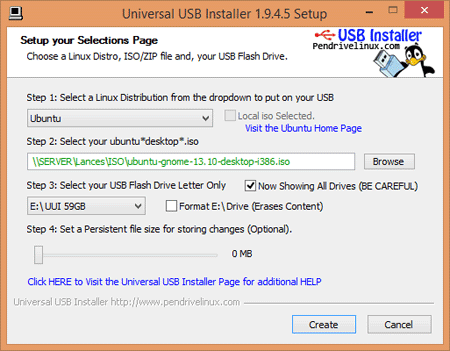
2. Need utility likes UUI(Universal USB Installer) for making bootable USB flash drive.
get here : http://www.pendrivelinux.com/universal-usb-installer-easy-as-1-2-3/

3. Make Bootable USB
- select "Ubuntu" at first dropdown box
- find your ubuntu iso file downloaded
- choose your USB drive
complete screen
ref : http://www.pendrivelinux.com/universal-usb-installer-easy-as-1-2-3/

4. Choose USB drive when your PC boot

5. Follow these steps
- select first option "Install Ububtu"
- recommend do not "V" check any box(faster)
- choose options, you want. and fill in, wait installing

6. If you can see 'log-in' screen, installing is completed


*** I recommend to back up(snapshot using utility likes timeshift) when you complete install before change some conditions.

Saturday, October 31, 2015

Useful Websites(IT / ComputerScience / ...)


Latest update (2016_07_18)

[ Algorithms ]
- https://uva.onlinejudge.org/ : [UVA] : an online automated judge for programming problems
- http://visualgo.net/ : [VisuAlgo] visualising data structures and algorithms through animation


[ Coding ]
- https://www.interviewcake.com : [Interview Cake] : Programming Interview Questions
- http://www.codewars.com : [Codewars] : authoring kata to teach various techniques, solving kata with solutions that enlighten others, and commenting with constructive feedback
- http://codecombat.com/ : [CodeCombat] : learn how to code by playing a game
- https://www.codecademy.com/ : [Codeacadeny] : learn to code
- https://www.udacity.com/ : [Udacity] : online courses and nanodegree programs to advance to your career
- https://www.udemy.com/ : [Udemy] : online courses anytime, anywhere
- https://www.codingame.com/start : [CodinGame] : the gaming platform for programmers


[ Competitive Programming ]
- http://web.stanford.edu/class/cs97si/ : [CS97SI Programming Contests] : Programming Course and Contests
- http://weaklearner.com/problems/search/ : [Programming Problems] : Categorized Programming Quiz
- http://codeforces.com/ : [Codeforces] : programming competitions and contests, programming community
- https://www.codechef.com : [CodeChef] : Online Programming Contest
- https://www.topcoder.com/ : [TopCoder] : administers contests in computer programming(design, development and data science) for fun and reward


[ Courses ]
https://www.inflearn.com/ : [Inflearn] : 지식정보강좌포털(korean contents)
https://www.coursera.org/ : [Coursera] : free online from top universities
http://online-learning.harvard.edu/ : Harvard online learning
http://ocw.mit.edu/index.htm : MIT open course wsre
https://www.edx.org/ : [edx] : free online courses from the world's best universities
https://www.khanacademy.org/ : [Khan Academy] : a free, world-class education for anyone, anywhere
https://www.p2pu.org/en/ : [Peer 2 Peer University] : a university for the Web


[ Knowledge Engine ]
- http://www.wolframalpha.com/ : [Wolfram Alpha] : a computational knowledge engine or answer engine


[ Machine Learning ]
**latesthttp://www.aistudy.co.kr/ : [AI Study] : AI Lectures(korean contents)
**latesthttp://deeplearning.stanford.edu/wiki/index.php/UFLDL_Tutorial : [UFLDL Tutorial] : Unsupervised Feature Learning and Deep Learning tutorial by Andrew Ng
- https://www.youtube.com/channel/UC9caTTXVw19PtY07es58NDg : [KAIST Open Online Course] : A.I and Machine Learning Lectures(korean contents), [카이스트 오픈 온라인 코스] : 인공지능 및 기계학습 동영상 강의 / http://seslab.kaist.ac.kr/xe2/page_GBex27 : (인공지능 및 기계학습 동영상 강의 강의자료)
- https://github.com/ujjwalkarn/Machine-Learning-Tutorials/blob/master/README.md : [Machine-Learning_Tutorials] : various machine learning tutorials
- https://www.youtube.com/user/hugolarochelle : [Hugo Larochelle YouTube Channel] : Neural network Lectures


[ Open Source Library ]
**latesthttps://github.com/TensorFlowKR/awesome_tensorflow_implementations : [Tensorflow Implementations] : source codes by tensorflow
**latesthttp://aikorea.org/blog/dl-libraries/ : [AI Korea] : 프로그래밍 언어별 AI관련 라이브러리 정리(korean contents)
- http://tensorflow.org/ : [TensorFlow] : is an open source software library for numerical computation using data flow graphs


[ QnA(Collective Intelligence) ]
- https://www.quora.com/ : [Quora] : the best answer to any question
- http://www.slideshare.net/ : [SlideShare] : Offers users the ability to upload and share publicly or privately PowerPoint, Word and PDF


[ SNS ]
- https://www.linkedin.com/ : [Linkedin] : a business-oriented social networking service


[ Tutorial ]
**latesthttp://www.vogella.com/ : [Vogella] : Provides services ranging from training, consulting and mentoring in the areas of Eclipse, Android and Git

[ Web Service ]
- https://delicious.com/ : [Delicious] : a social bookmarking web service for storing, sharing, and discovering web bookmarks

Wednesday, October 28, 2015

Install Gensim on UBUNTU 14.04

Gensim is python library for topic modeling.


Installation

1. Check dependencies Python(>=2.6) & NumPy(>=1.3) & SciPy(>=0.7)

2. Install SciPy & NumPy
$ sudo apt-get install python-numpy
$ sudo apt-get install python-scipy

3. Download and unzip ~.tar.gz.source file
https://pypi.python.org/pypi/gensim
$ python setup.py install

4. Open ~/.bashrc by text editor and insert PATH
export PATH=$PATH:\
/home/..../Desktop/TopicModeling/Gensim


Testing

1. Go to ~/GENSIMHOME and run
$ python setup.py test
more examples:
https://radimrehurek.com/gensim/tutorial.html


Ref:
https://radimrehurek.com/gensim/install.html

Neo4j installation

Install Neo4j(graph DB) on ubuntu 14.04.03


1. First install java7
$ sudo apt-get update
$ sudo apt-get install python-software-properties
$ sudo add-apt-repository ppa:webupd8team/java
$ sudo apt-get update
$ sudo apt-get install oracle-java7-installer

2. Download Neo4j(select community edition)
http://neo4j.com/download/

3. Extract file, refer to the top-level extracted directory as : NEO4J_HOME

4. Open ~/.bashrc and change
export PATH=$PATH:\
/home/...../neo4j-community-2.3.0

5. Run
$ sudo ./bin/neo4j start or stop or restart

6. Open web browser and type in "localhost:7474"


*****
If you want to use Neo4j in Python project, you need to python module like py2neo

1. Install py2neo
$ sudo pip install py2neo

2. Setting port / user name / password when you make code
from py2neo import neo4j, authenticate, Graph

host_port = "localhost:7474"
user_name = "neo4j"
password = "neo4j"

authenticate(host_port, user_name, password)
graph = Graph("http://localhost:7474/db/data/")


Ref:
http://www.delimited.io/blog/2014/1/15/getting-started-with-neo4j-on-ubuntu-server
http://neo4j.com/docs/stable/server-installation.html
http://py2neo.org/2.0/

Monday, October 26, 2015

CWB (The IMS Open Corpus Workbench) installation

CWB(The IMS Open Corpus Workbench) : managing and querying large text corpora
I will use CWB for preprocessing of topic modeling


(ubuntu 14.04.03)
1. Download CWB, extract
http://cwb.sourceforge.net/download.php

2. Install on target directory
$ sudo ./install-cwb.sh

3. Finish

4. If you want to test your CWB installation, download and unpack one of the pre-indexed demo corpora(novels by Charles Dickens)
http://cwb.sourceforge.net/download.php

5. Move to DemoCorpus/ and typing this on command line
$ cwb-describe-corpus -r registry -s DICKENS
result

it prints some information about the corpus and its attributes

6. Next type in
$ cqp -eC -r registry -D DICKENS
start an interactive CQP session and activate the demo corpus DICKENS for queries.

7. Type in some words like this, and check result.
DICKENS> "the"
result


8. Try applying options
DICKENS> set Context 1 s;
DICKENS> "the";
DICKENS> show +lemma
DICKENS> show +pos;


9. Finished settings and try testing again


****
If you want to use CWB wherever, not specific directory

1. On DemoCorpus/
$ sudo mkdir /usr/local/share/cwb
$ sudo mkdir /usr/local/share/cwb/registry

2. Open 'dickens' file in /DemoCorpus/registry and change
HOME data => HOME /home/won/Desktop/TopicModeling/CWB/DemoCorpus/data

3. Testing on other directory
$ cd registry/
$ sudo cp dickens /usr/local/share/cwb/registry/

****
CWB was written by perl. If you want to use on python, need to install python wrapper(like yannick-cwb-python)

1. Download source and unpack
https://bitbucket.org/yannick/cwb-python/src

2. Install wrapper
$ python setup.py build
In my case, error issued in this step. like that
running build
running build_py
running build_ext
building 'CWB.CL' extension
x86_64-linux-gnu-gcc -pthread -fno-strict-aliasing -DNDEBUG -g -fwrapv -O2 -Wall -Wstrict-prototypes -fPIC -Isrc -I/usr/include/python2.7 -c src/CWB/CL.cpp -o build/temp.linux-x86_64-2.7/src/CWB/CL.o
cc1plus: warning: command line option ‘-Wstrict-prototypes’ is valid for C/ObjC but not for C++ [enabled by default]
src/CWB/CL.cpp: In function ‘int __pyx_pf_3CWB_2CL_6IDList___cinit__(PyObject*, PyObject*, PyObject*)’:
src/CWB/CL.cpp:1659:7: warning: variable ‘__pyx_v_is_sorted’ set but not used [-Wunused-but-set-variable]
   int __pyx_v_is_sorted;
       ^
c++ -pthread -shared -Wl,-O1 -Wl,-Bsymbolic-functions -Wl,-Bsymbolic-functions -Wl,-z,relro -fno-strict-aliasing -DNDEBUG -g -fwrapv -O2 -Wall -Wstrict-prototypes -D_FORTIFY_SOURCE=2 -g -fstack-protector --param=ssp-buffer-size=4 -Wformat -Werror=format-security build/temp.linux-x86_64-2.7/src/CWB/CL.o -lcl -lpcre -lglib-2.0 -o build/lib.linux-x86_64-2.7/CWB/CL.so
/usr/bin/ld: cannot find -lpcre
/usr/bin/ld: cannot find -lglib-2.0
collect2: error: ld returned 1 exit status
error: command 'c++' failed with exit status 1
just install gcc and some libraries.
$ sudo apt-get install gcc
$ sudo apt-get install libpcre3 libpcre3-dev
$ sudo apt-get install libglib2.0-dev
then install wrapper continuously
$ sudo python setup.py install

3. Confirm installation
$ python -m doctest tests/idlist.txt
which should terminate with no output when everything is well.


Ref:
http://cwb.sourceforge.net/install.php
https://bitbucket.org/yannick/cwb-python/src

Thursday, October 22, 2015

Import other email account to Gmail account

First, change settings in your 'other account':
(in my case, other account is Gmail also)

1. At the right top and select 'Settings'


2. Select 'Forwarding and POP/IMAP' tab
3. In 'POP Download', select 'Enable POP for all mail'
4. Drop-down menu next to '2. When messages are accessed with POP', choose 'keep Gmail’s copy in the inbox'


5. Save changes


Second, change settings in your 'Gmail account':

1. At the right top and select 'Settings'
2. Select 'Accounts and Import' tab
3. In 'Check mail from other accounts (using POP3)', click 'Add a POP3 mail account you own'


4. Enter full email address of the other account, then click Next Step
5. In 'Username' block, enter full email address of the other account, not your name
6. Choose 'POP Server' and 'Port' in drop-down menu, you can find those by googling
7. Check following four options, if you need


(in my case, receive error message like this)

(Server denied POP3 access for the given username and password.
Server returned error: "[AUTH] Web login required: https://support.google.com/mail/answer/78754")

1. Sign in your 'other account'(Gmail)
2. you may need to Enable less-secure Apps for that account
link : https://www.google.com/settings/security/lesssecureapps
3. Then
link : https://accounts.google.com/b/0/DisplayUnlockCaptcha

finally it works


ref:
https://support.google.com/mail/answer/21289?ctx=gmail&hl=en&authuser=0
https://productforums.google.com/forum/#!topic/gmail/krIs0nf96Jk